How to cancel a Suno subscription, ask for a refund and delete your account
A Suno charge just showed up on your card statement, or you have decided to stop paying for Pro or Premier. If you're working out how to cancel a Suno subscription, it comes down to one detail you may not remember: where you signed up.
Suno's website, Apple's App Store and Google Play each keep their own subscription settings, and each handles refund requests in its own way. Your credits and how many songs you can download also change once the paid period ends, so a few minutes of planning before you cancel can save you trouble later.
Where to cancel Suno depends on how you paid
Each of the three places that sell Suno subscriptions keeps its own list of them. If you subscribed on suno.com, cancel at suno.com/account; if you paid through the App Store or Google Play, cancel in that store's subscription settings, because Suno, Inc. says in its help center that it can typically only modify subscriptions made through its own payment processor and "may not be able to assist" with App Store or Google Play purchases.
The table sums up where each kind of Suno subscription is canceled and who rules on a refund.
| Paid through | Cancel in | Refund decided by |
|---|---|---|
| suno.com | suno.com/account or billing@suno.com | Suno |
| App Store | Apple Account subscriptions (Settings or account.apple.com) | Apple |
| Google Play | Google Play subscriptions | Google within 48 hours; after that, Google points to Suno |
To find your row, look for an Apple receipt email, check your Google Play order history, or read the company name on your card statement. Suno's apps on both stores are listed under the developer name Suno, Inc., so check that name on the app's store page if you are not sure which app you are paying for.
On Android, removing the app does not cancel the subscription: Google's help page says that when you uninstall an app, the subscription won't cancel, so end the subscription first and uninstall afterward.
What you keep after you cancel
Plan the last days of your billing period before you cancel, because several things end with it. Suno's Terms of Service say that after you cancel, "you will continue to have access to the paid Service through the end of the subscription period for which payment has already been made." Suno's refund article adds that the account then reverts to the Basic plan, Suno's free tier.
- Your songs stay. Suno's help center says that if you cancel, "your library stays yours and all of your songs remain in your account," and you can still listen to and share them on the free tier.
- Downloads drop to free-tier limits. Suno's download help page gives free users who joined before September 3, 2026 up to 7 trial downloads and says later sign-ups may occasionally receive some, though other Suno help articles describe up to 7 trial downloads for every free account. Trial downloads are not eligible for commercial use.
- Unused credits stop working. Suno's pricing page says credits included in subscriptions "do not carry over from day to day or month to month," and that purchased top-up credits do not expire "but require an active subscription to use."
The download rule matters if you use your songs commercially. Suno's terms allow commercial use of a song only if you have "obtained a permitted download" of it within your plan's download allocation, and they say the rights tied to a download you have obtained "are perpetual" and are not affected by the "expiry, cancellation, downgrade or suspension of your subscription." Suno's help center puts it more simply: "For any song that you download from the platform as a paying subscriber, you have the commercial rights to the music." Among other limits, the terms say commercial use must follow Suno's Conditions of Access and Use, and that Remixes are for personal, non-commercial use only, even if downloaded. A Remix, in the terms, is a remix of one user's song that another user makes through features the first user turns on. The terms make it a joint work of both "to the extent that copyright vests" in it, and the limit applies to every joint owner, including you when you remix someone else's song.
Suno's help center lists 20 download credits a month for Pro and 60 for Premier, and says monthly download credits do not roll over; Suno's pricing page adds that paid plans can buy additional downloads. So if you might release, license or sell a song, this guide suggests downloading it before the paid period ends. Some older Suno help articles, last edited between December 2025 and January 2026, still tie commercial rights to songs made while subscribed; the terms in effect since September 3, 2026 tie commercial use to downloads. For Suno's plans, prices and the rest of its public record, see the LegitTool review of Suno.
How to cancel Suno on the website
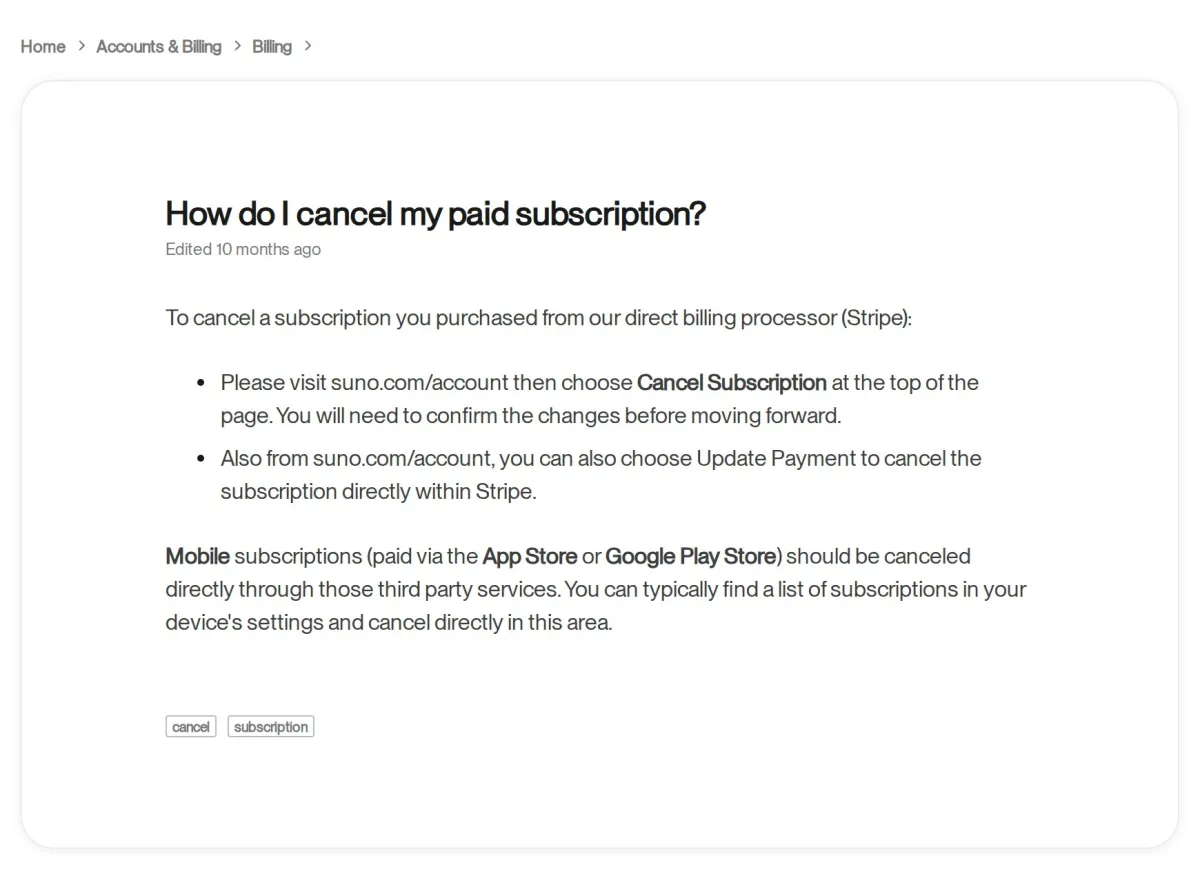
If you pay Suno directly by card, cancel on suno.com. Suno's help article "How do I cancel my paid subscription?" gives two routes:
- Go to suno.com/account and choose Cancel Subscription at the top of the page, then confirm the change.
- Or, on the same page, choose Update Payment and cancel inside Stripe, the payment processor Suno names in that article.
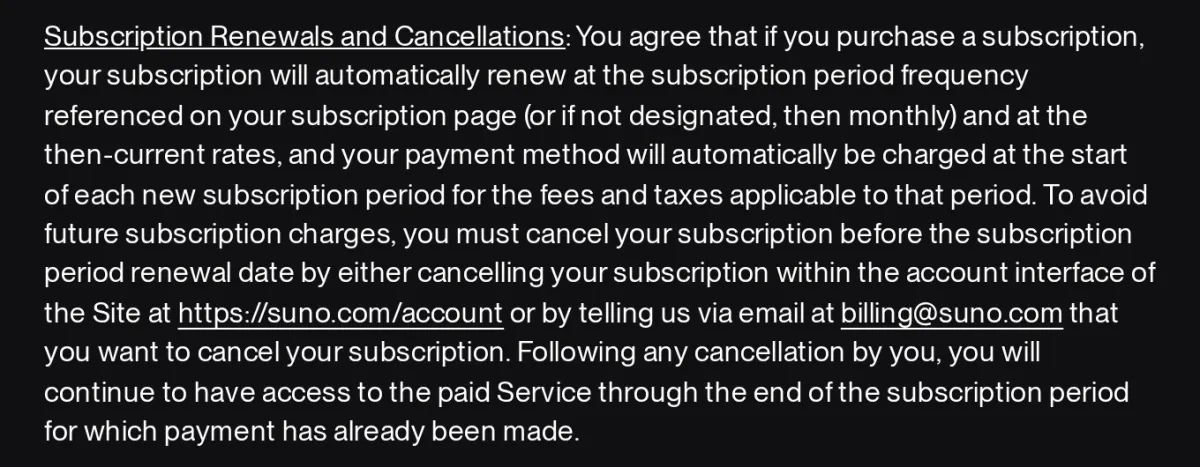
Timing decides whether you pay for another period. Suno's Terms of Service, last revised August 10, 2026 and effective September 3, 2026, say you "must cancel your subscription before the subscription period renewal date," either on the account page or by emailing billing@suno.com that you want to cancel. The previous version, dated March 26, 2026, asked for cancellation "seven (7) days before" the renewal date; the version in effect since September 3, 2026 dropped that window.
Letting a card expire is not a reliable way to stop the billing: under Suno's terms, you authorize its payment processor to keep billing your payment method "even after such payment method has expired." If your plan has already ended and you need old invoices, Suno's help article "I'm no longer subscribed. How do I access my billing information?" explains how to get a login link to the billing page by email.
How to cancel Suno on iPhone or iPad
If you subscribed in the Suno app on an Apple device, Apple bills you and the subscription sits in your Apple Account. Apple's support page lists four steps:
- In Settings, tap your name.
- Tap Subscriptions.
- Tap the Suno subscription.
- Tap Cancel Subscription. You might need to scroll down to find the button.
If there is no Cancel button, or you see an expiration message in red text, Apple says the subscription is already canceled. Apple also lets you cancel on the web at account.apple.com, which helps if you no longer have the iPhone you subscribed on, and on a Mac through your name in the App Store. Suno's App Store listing says the subscription renews automatically "unless auto-renew is turned off at least 24 hours before the end of the current period," so cancel at least a day before your renewal date.
If Suno is not in the list, Apple suggests searching your email for "receipt from Apple" or "invoice from Apple" and checking which Apple Account was used. If you can't find a receipt from Apple, Apple says you "might've bought the subscription from another company," so check your bank or card statement and cancel with the company that bills you.
How to cancel Suno on Android
Subscriptions bought in the Suno Android app are billed by Google Play. Google's help page gives these steps:
- On your Android device, go to subscriptions in Google Play.
- Select the Suno subscription.
- Tap Cancel subscription.
- Follow the instructions.
Suno's own help article describes a second path through the phone's Settings app: Google, your name, Manage your Google Account, Payments & subscriptions, Manage subscriptions, then Suno. Either way, Google says that after you cancel, "you'll still be able to use your subscription for the time you've already paid." Suno's Google Play listing has the same 24-hour line as its App Store listing: auto-renew has to be turned off "at least 24 hours before the end of the current period."
Can you get a refund from Suno?
None of the three billers promises a refund for a plan you simply stopped wanting, and who decides depends on how you paid. For subscriptions bought on suno.com, Suno's Terms of Service say payments "are final and non-refundable, unless otherwise determined by Suno," and add that nothing in that section "limits any statutory refund rights you may have under applicable law." The one refund the terms commit to is a pro rata refund of prepaid fees if Suno discontinues the service.
Suno's help article "Can I get a refund?" describes refunds as case by case and gives examples on both sides:
- Yearly plan bought by mistake: Suno says it can switch you to a monthly plan, which "would include a partial refund."
- Paid but never used: if your account has zero songs and Suno sees one or more payments, the article says Suno is likely to help with a refund.
- Outage or broken feature: the article lists this among the reasons Suno would honor a refund, but for "significant downtime due to an outage or feature that isn't working" the remedy it describes is credits, which "will carry over to the next month."
- No refund: changing your mind after six months of use, or a monthly plan used only on and off for several months. In the first case the article recommends canceling; in the second it suggests canceling whenever you won't be using Suno and resubscribing when you need more than the Basic plan's credits.
Right after the "changed your mind" example, the article adds that if it has only been a day or two, you can write to support@suno.com. Suno lists billing@suno.com as its address for billing requests; this guide suggests giving the account email plus the date and amount of the charge.
As of October 12, 2026, Suno's refund article describes no refund for canceling an annual plan partway through; its only annual-plan example is the mistaken yearly purchase above. Suno's FAQ on the September 2026 download limits takes up a question from annual subscribers whose plan included unlimited downloads, and its answer is how to cancel at suno.com/account. Suno's App Store and Google Play listings also say a current subscription "may not be canceled during the active subscription period"; what you can turn off is auto-renewal, so canceling in either store stops the next charge rather than ending the current period early.
Refunds for App Store subscriptions
Apple, not Suno, decides these. Apple's steps: sign in to reportaproblem.apple.com, tap or click "I'd like to," choose "Request a refund," pick a reason, then choose the subscription and submit. Apple says some purchases "might be eligible for a refund," asks you to wait 24 to 48 hours for an update, and says the money may take additional time to return if it approves. Apple's refund page lists canceling as a separate step, so cancel the subscription as well.
Refunds for Google Play subscriptions
Google says a refund "may depend on how long it has been since you purchased it." Within 48 hours, you "may be able to get a refund depending on the details of the purchase." Request it through the Request a refund link on Google's help page. If the purchase isn't listed there, go to play.google.com, then your profile picture, Payments & subscriptions, Budget & order history and Report a problem, and note that you'd like a refund. Google says you'll usually get a decision within one day, though it can take up to four days.
After 48 hours, Google says to contact the developer, which for this app is Suno. Suno's help center, for its part, says it "may not be able to assist with purchases from the Google Play Store or App Store" and points to your provider or billing@suno.com, so after 48 hours neither side promises a refund for a Google Play subscription.
If a Suno charge looks wrong
First work out which company charged you. A charge from Apple goes through Apple's refund process above. For Google Play, Google says to report a purchase that you didn't make, and that wasn't made by anyone you know, as an unauthorized charge "within 120 days of the transaction." Use the report unauthorized charges link on Google's "Request a refund on Google Play" page. Other Google Play charges follow the 48-hour rule above. A charge from Suno's payment processor goes to Suno, and Suno's terms ask you to raise a disputed charge "within sixty (60) days after the date that Suno charges you," or within any longer period the law requires.
If you paid by credit card, the Fair Credit Billing Act gives you a formal dispute process, and the FTC says it is for billing errors: unauthorized charges, charges with the wrong date or amount, and charges for things you didn't accept or that weren't delivered as agreed. For a billing error, the FTC says to contact the card issuer right away so you don't run out of time, and that you could also contact the seller at the same time. Write to the issuer at its billing-inquiries address, not the payment address, and send the letter so that it reaches the issuer within 60 days after the first bill with the error was sent to you. The issuer must acknowledge your complaint in writing within 30 days and resolve it within 90 days.
If the issuer rules against you, the FTC says you can appeal by telling the issuer in writing that you refuse to pay because you still dispute the billing error. Do it within the time the issuer gives you to pay or 10 days of getting its explanation, whichever is later. The FTC warns that at this point the issuer can begin collection procedures and can report you to a credit bureau as delinquent, though the report must say you still dispute the error. If you pay within the time the issuer gives you, the FTC says you can't be reported as delinquent. The FTC also points to filing a complaint with the Consumer Financial Protection Bureau.
A renewal you forgot to cancel is a different case. Suno's terms say you "must cancel your subscription before the subscription period renewal date" to avoid the charge, and its App Store and Google Play listings ask you to turn off auto-renew at least 24 hours before the period ends, so this guide suggests asking Suno, Apple or Google for a refund as described above rather than filing a dispute.
Debit cards work differently. The CFPB says a debit card charge you did not make or allow may come with extra federal protections. If you did not lose your card, PIN or security code and none of them was stolen, the CFPB says to tell your bank right away, and at the latest within 60 days after the bank sends the statement showing the charge. If the card was lost or stolen, telling the bank within two business days of discovering it keeps what you owe for unauthorized charges to $50 at most; after that, you could owe up to $500. For automatic payments from a bank account, it says that once you have told both the bank and the company that you revoked permission, any further payments by that company "would be errors."
Safety note: Before you dispute a Suno charge, download the songs you want to keep and save your cancellation confirmation and emails. Suno's terms do not address chargebacks through your bank, but they let Suno suspend or terminate an account "for any reason in Suno's sole discretion." The CFPB notes that stopping payments is not the same as canceling the contract, so cancel the subscription too.
For charges that keep coming from any AI tool after you thought you had canceled, see the guide on how to cancel an AI subscription that keeps charging you.
How to delete your Suno account
Cancel the paid subscription and finish your downloads before you delete anything, because deletion is final. Suno's help article on deleting an account says that "Songs and any personal details will not be recoverable," and it does not say whether deleting the account ends a subscription billed by Apple or Google. Its steps are for the iOS and Android apps:
- Open the Suno app and tap your profile photo at the bottom right.
- Tap the gear to open Settings, then scroll to the bottom of the page.
- Tap Delete account, located under the Save icon.
- Confirm. Depending on the device, you may see a simple confirm button or have to type out a phrase.
Suno's Privacy Notice (last modified June 23, 2026) gives a second route for your personal information: email privacy@suno.com to ask Suno to delete it. The notice says Suno will comply "within a reasonable period of time" but may keep some information, for example where the law requires it, and may keep deidentified or aggregated data that no longer identifies you. For residents of California, Colorado and other states with similar privacy laws, the notice says Suno will verify a request by asking for at least two pieces of personal information, such as full name and email address, and that you can appeal a denial by email.
For what "deleted" usually means in an AI tool's own policies, see the guide on what happens to your data when an AI tool shuts down. If you only want a break from Suno, canceling keeps your library in place; deleting the account is the step you cannot undo.
Sources and how we checked
We read Suno's Terms of Service, Privacy Notice, pricing page, help-center articles and App Store and Google Play listings, Apple's and Google's subscription and refund help pages, and FTC and CFPB consumer guidance on October 12, 2026. LegitTool did not sign up for, pay for or test Suno. Quotes from Suno's terms come from the version dated August 10, 2026 (effective September 3, 2026); the March 26, 2026 version was read in an archived copy. LegitTool's monitoring first recorded the new terms on October 7, 2026, after they had taken effect.
- Suno: Terms of Service (date of last revision August 10, 2026, effective September 3, 2026); earlier Terms of Service (revised March 26, 2026, archived copy saved August 31, 2026); Privacy Notice (last modified June 23, 2026); Pricing (undated); Suno on the App Store (app listing, undated) and Suno on Google Play (app listing, updated October 7, 2026). Viewed October 12, 2026.
- Suno help center: How do I cancel my paid subscription?, How do I cancel my subscription? (mobile), Can I get a refund?, Something isn't working. How do I get help?, I'm no longer subscribed. How do I access my billing information? and How do I delete my account? (each edited December 19, 2025); Can I distribute my songs to Spotify, etc? and If I subscribe, do I get rights for the songs I made before subscribing? (edited December 17, 2025); Does Suno own the music I make? (edited January 7, 2026); Upcoming Changes FAQ: Downloads, Models, and Terms of Service (edited August 10, 2026); How do downloads work? and Do download credits roll over? (edited September 3, 2026); How do free trial downloads work? (edited September 9, 2026). Viewed October 12, 2026.
- Apple Support: Cancel a subscription from Apple (published September 29, 2026); Request a refund for apps or content that you bought from Apple (published September 17, 2026). Viewed October 12, 2026.
- Google Play Help: Cancel, pause, or change a subscription on Google Play; Apps, games, & in-app purchases (including subscriptions) refund policies; Request a refund on Google Play (all undated). Viewed October 12, 2026.
- Federal Trade Commission: Using Credit Cards and Disputing Charges (May 2022). Viewed October 12, 2026.
- Consumer Financial Protection Bureau: How do I get my money back after I discover an unauthorized transaction or money missing from my bank account? and How do I stop automatic payments from my bank account? (both reviewed August 28, 2026). Viewed October 12, 2026.
Updated: October 12, 2026